
How to unprotect an Excel-sheet without the password
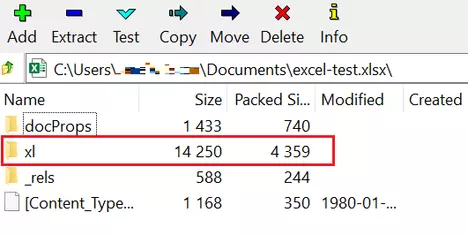
Things aren’t quite as hopeless if you want to unprotect a Excel worksheet but no longer know the password. There is actually a trick for this. However, it involves file manipulation, and there’s no guarantee it will work with all current and future versions of Excel. Of course, we assume that you will only attempt this if you are authorized to do so. Step 1: Before performing any of the steps below, make a copy of the Excel-file in question. Carry out the following steps using the copied version, because if you make a mistake while modifying the file, you still have the unmodified original version and can start over. Step 2: Open the copy of the file with 7-Zip. The 7-Zip program comes preinstalled on Windows 10, so all you need to do is right-click on the file and select Open from the 7-Zip menu. If 7-Zip is not installed on your system, you can download it for free at 7-zip.org. Step 3: Open the xl folder inside 7-Zip.
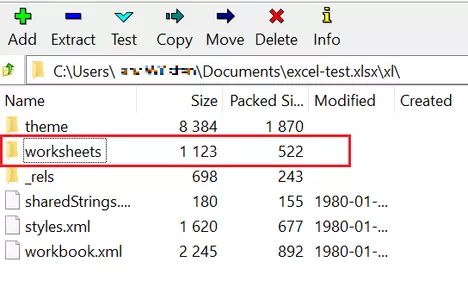
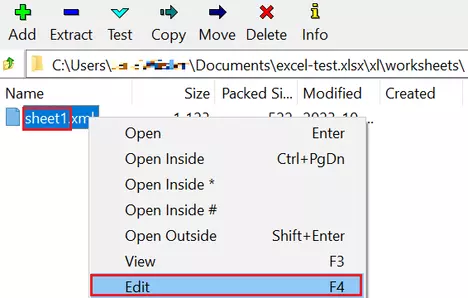
<sheetProtection in the text and select all text up to the closing />:
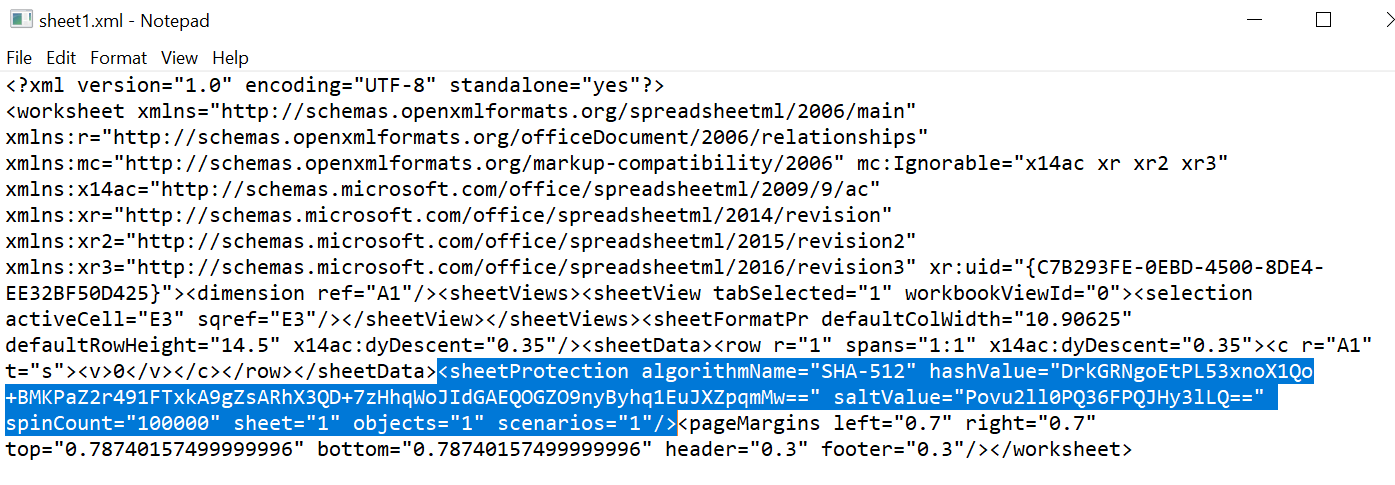
<sheetProtection all the way up to the next />. Be careful not to delete anything else so as not to damage the structure of the XML file.
Step 8: Close the text editor. To save the changes, you need to confirm them. Since you opened the file in 7-Zip, 7-Zip will now ask: “The file sheet1.xml has been changed. Should it be updated in the archive?” Confirm the changes so that they are applied to the Excel file and close 7-Zip.
Result: You can now open the modified copy of the file in Excel. You will find that the sheet protection has been removed and the worksheet can now be edited again.
While this method lets you remove Excel sheet protection, you cannot find out which password was previously used. As shown in the text editor, the password is stored internally using hash values, making it impossible to be worked out.
! Note
Changing an Office file’s source code should only be attempted as a last resort. It is important to create backup copies in case the file is destroyed. Even if, at first glance, the change was successful, it is best not to continue using the Excel file in question, but to set it up again if necessary. Please also remember that you are liable for any damage that results from changes you have made to the source code.